Upscale your AI photos and videos with one click in Photo AI
Written By @levelsio
Last updated Over 1 year ago
Want sharper, crisper, high-resolution photos from your AI shoots? Photo AI’s Upscale feature lets you instantly increase the size and quality of any image or video — no Photoshop, no tech knowledge.
Whether you’re printing, posting on social, or using images in your online store, Upscale makes your photos and videos pop.
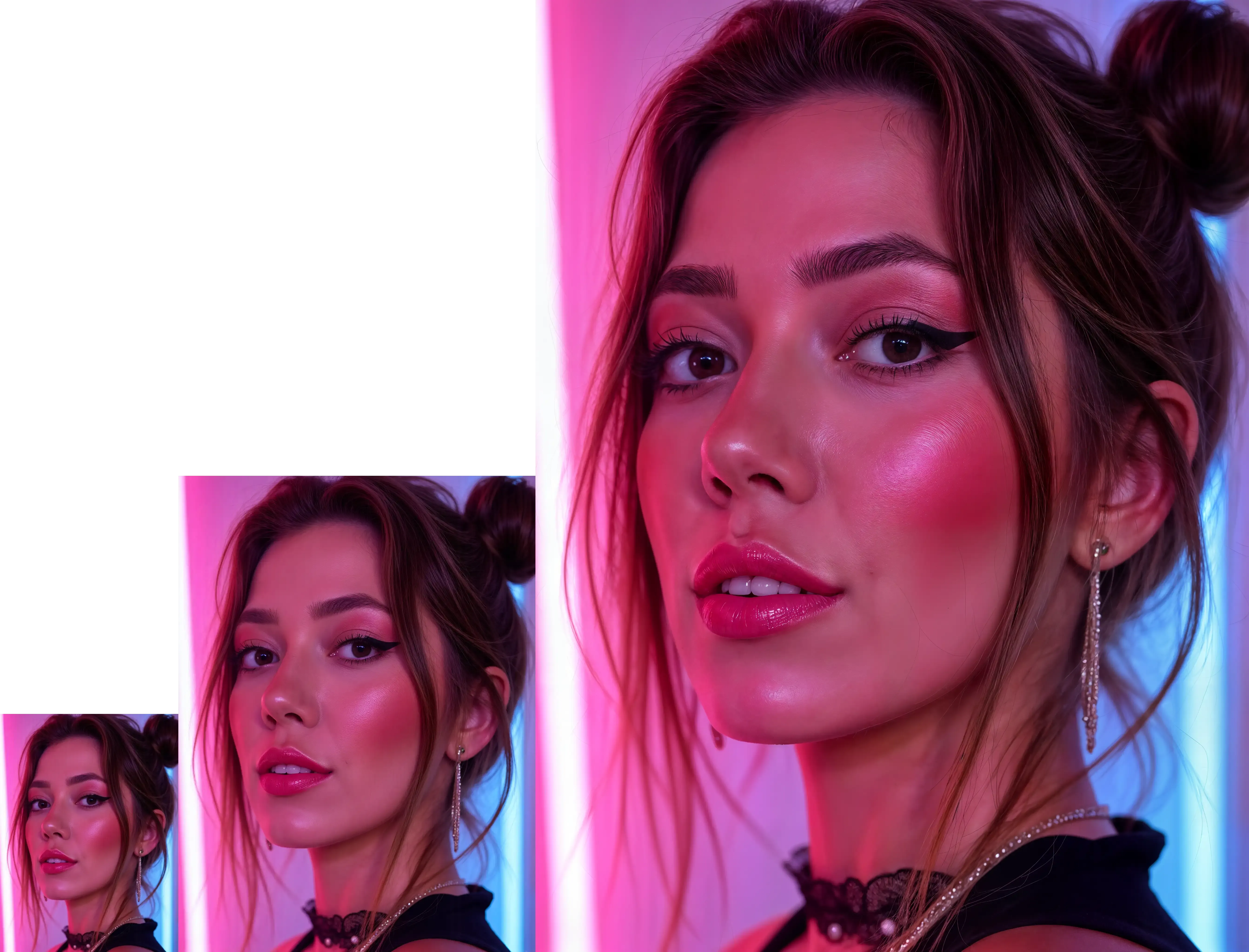
What does Upscale do?
Upscale uses advanced AI to:
Increase the resolution of your image or video (e.g. 512x512 → 2048x2048)
Sharpen details like eyes, skin, hair, and clothing
Remove blur and fix artifacts
Preserve the original style and subject
How to use Upscale in Photo AI
Step 1: Create or select your AI model
Go to [ Create new AI model ] in the sidebar. Upload around 20 photos of your model, this could be yourself or someone you’ve hired.
In about a minute, Photo AI will train a photorealistic, personalized AI model that looks just like them.
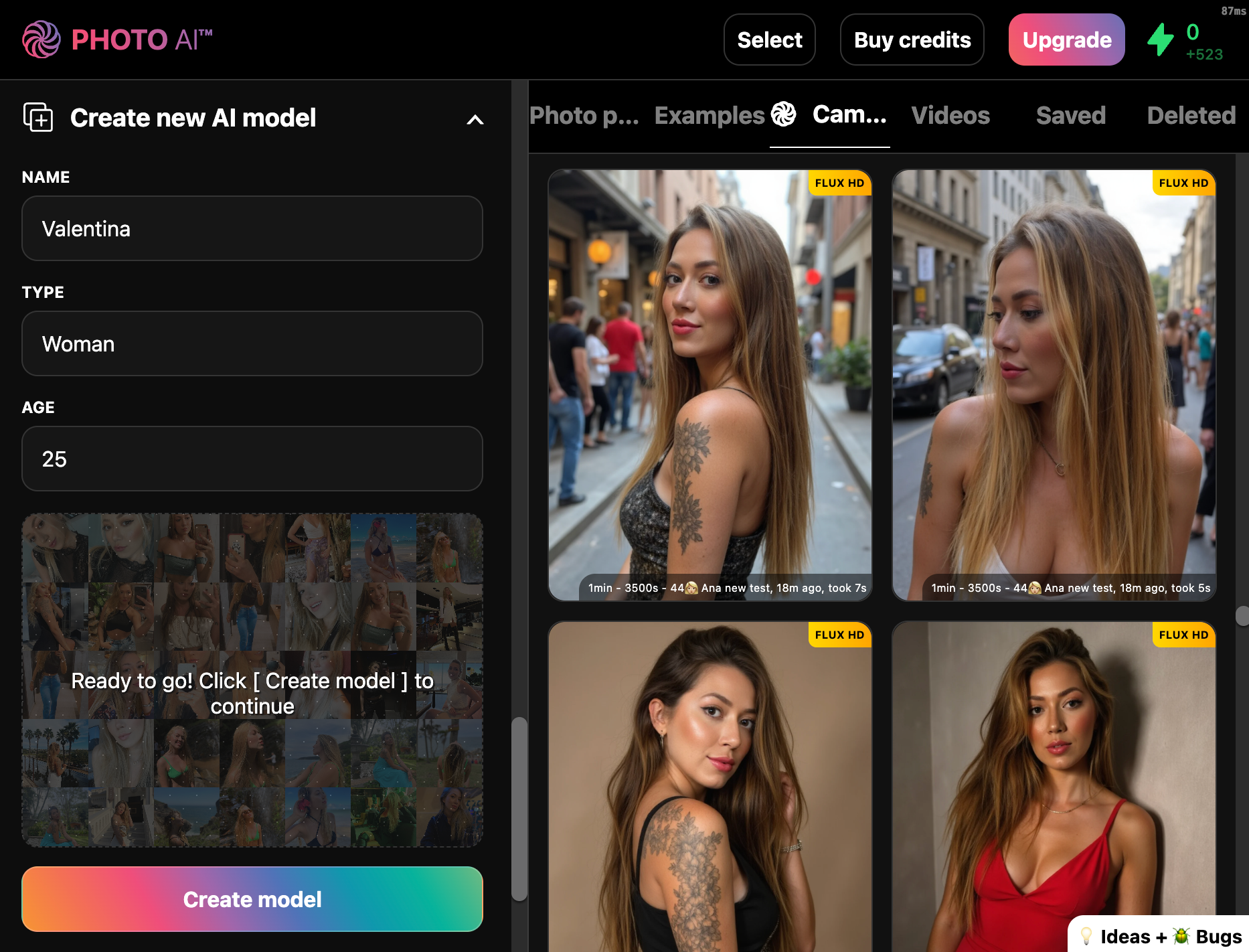
You can reuse this model.
Step 2: Generate photos
Take photos using the camera or explore preset photo packs — headshots, dating app pics, fashion, lifestyle, and more.
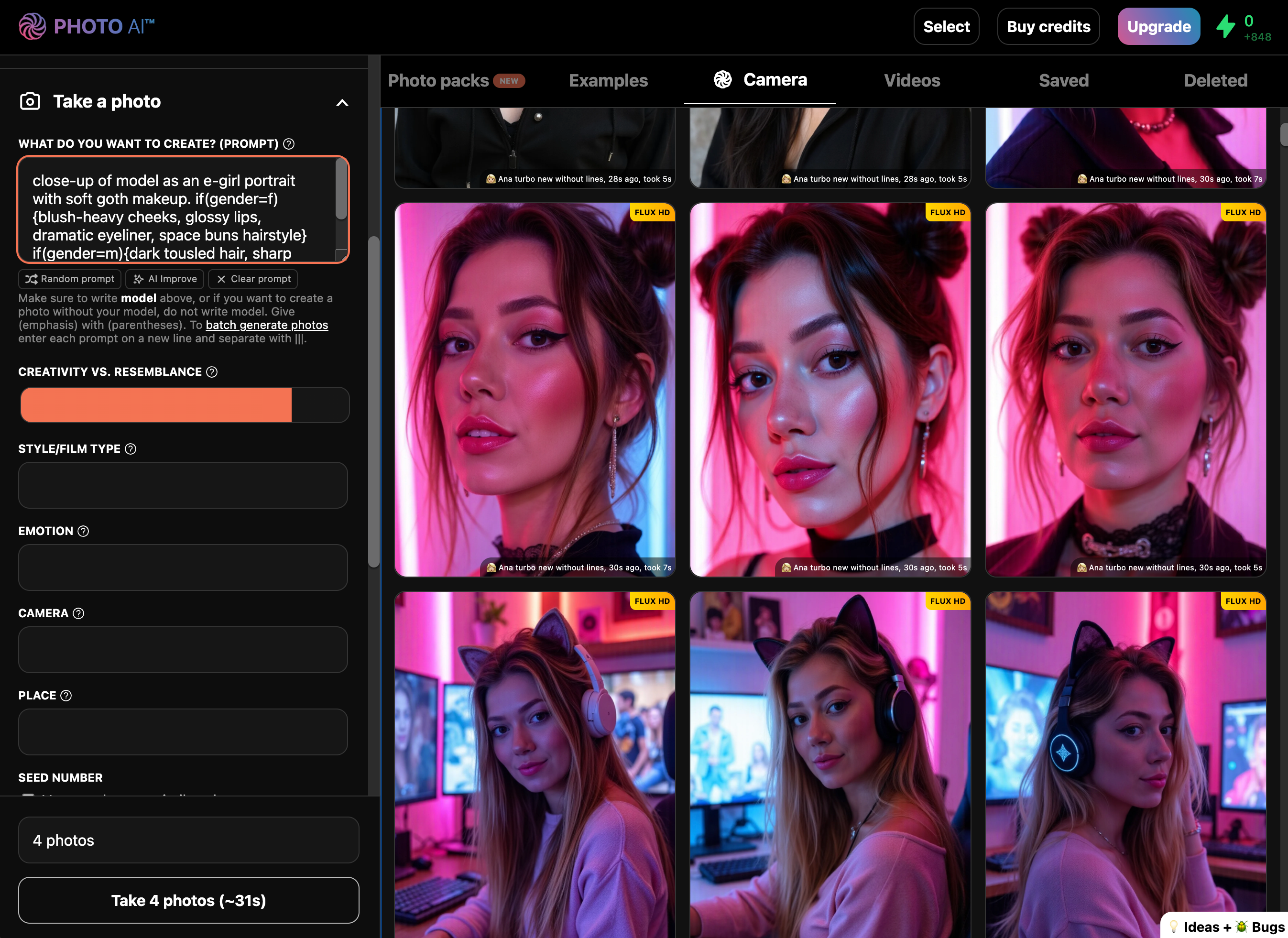
If you’d like to then turn your photo into a video press [ Make video ] and you will see a video, which you can also upscale.
Step 3: Hover over any photo or video
Go to your Photo AI gallery and hover over the photo or video you want to upscale.
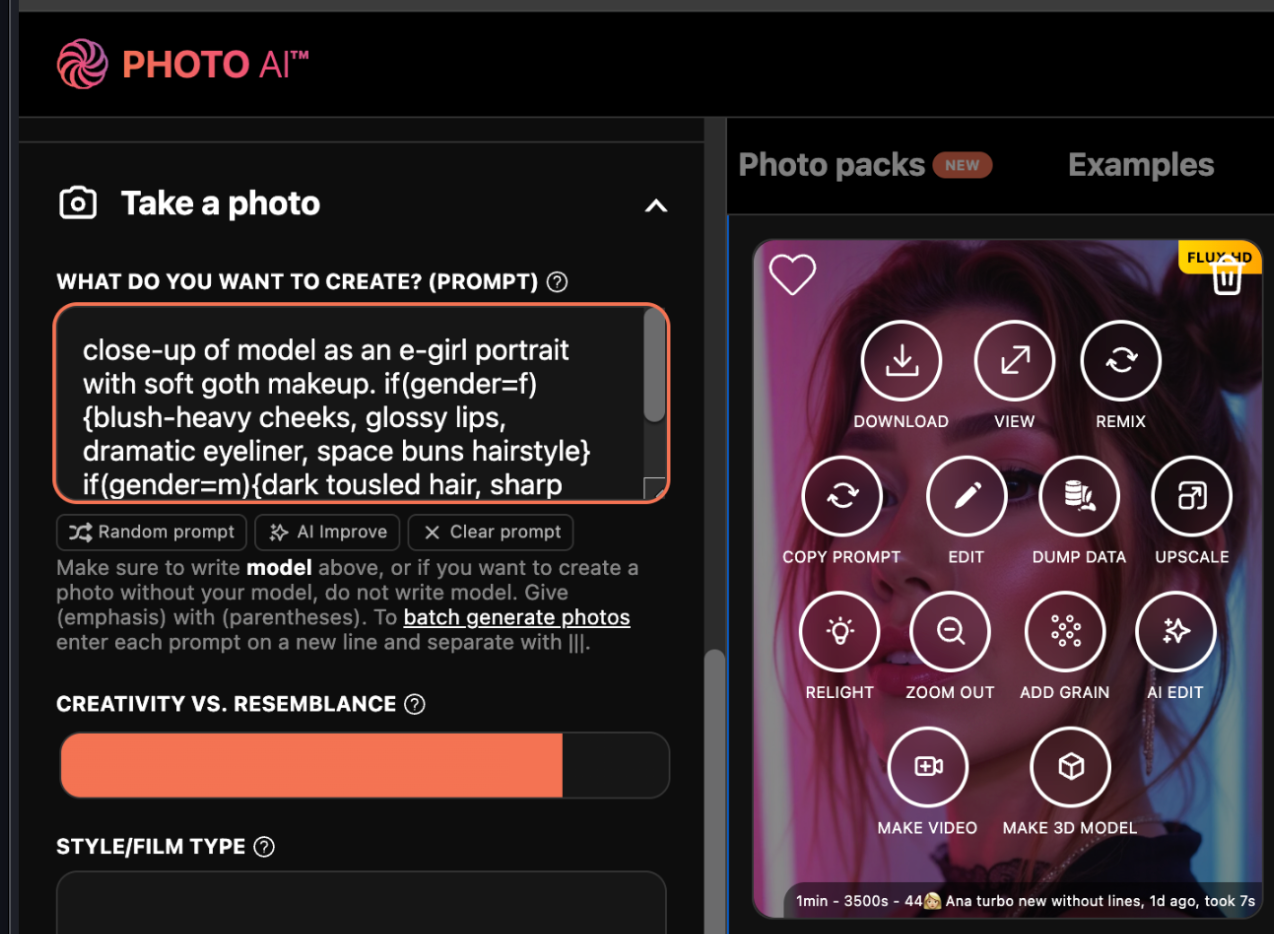
Step 4: Click [ Upscale ] to upscale it by 2x
Photo AI will automatically generate a higher-resolution version of your photo or video:
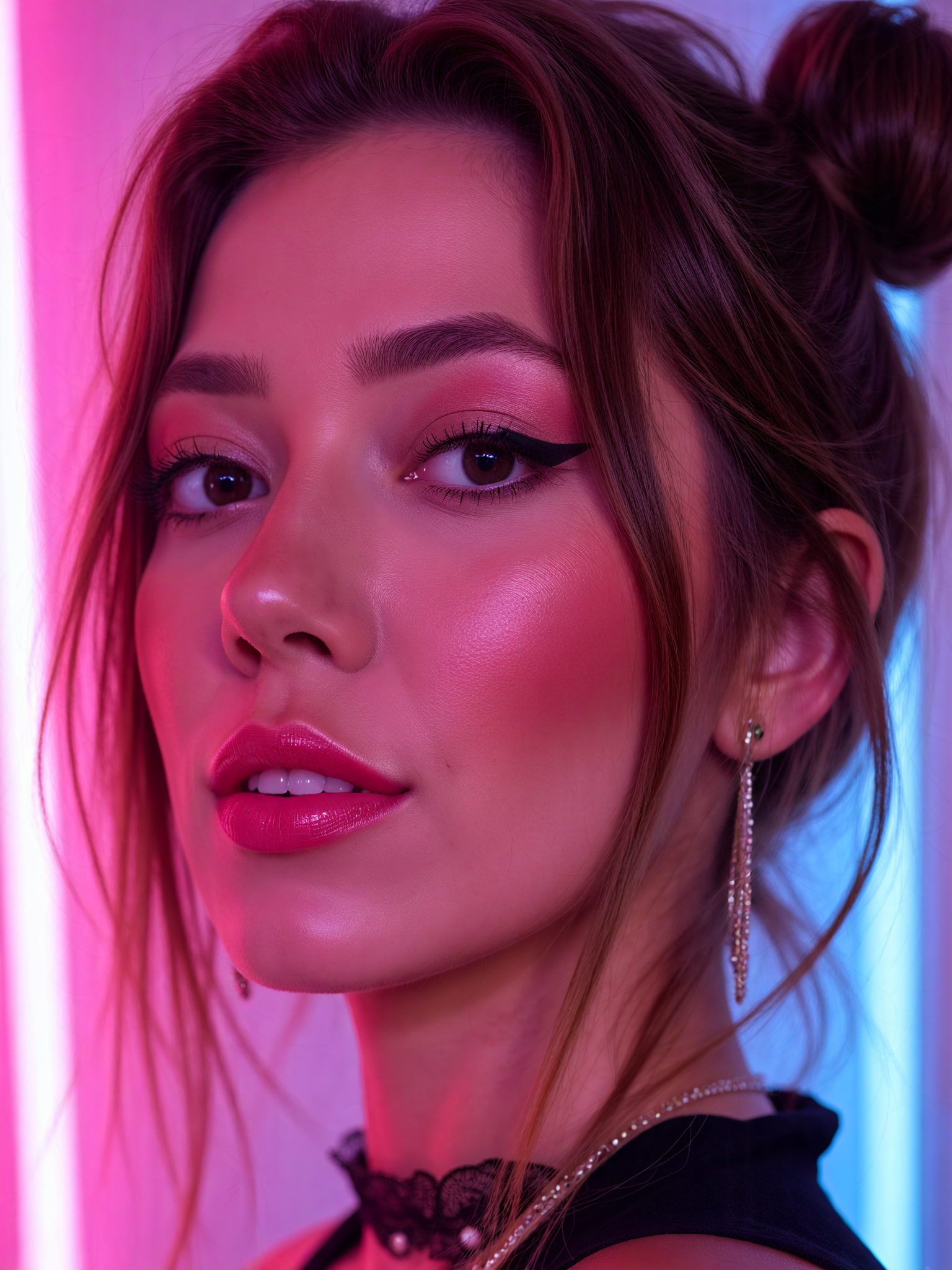
Step 5 (optional): Upscale again to 4x
You can upscale an upscaled photo again to get it to 4x super size. We use a different upscale model for the second pass.
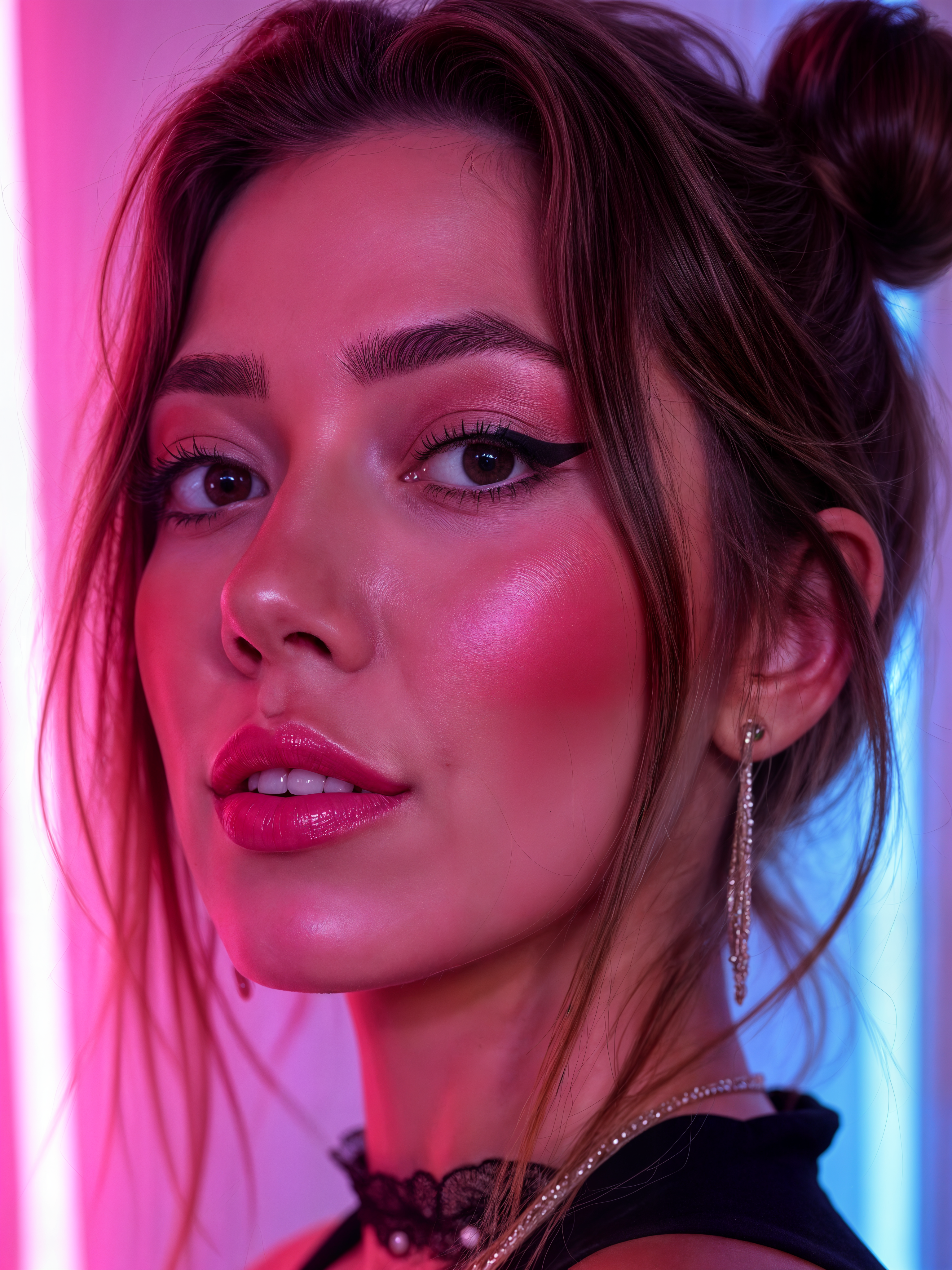
Compare the levels
If we zoom in at the eyes we can more clearly see the increase in detail for each 2x or 4x upscale pass!
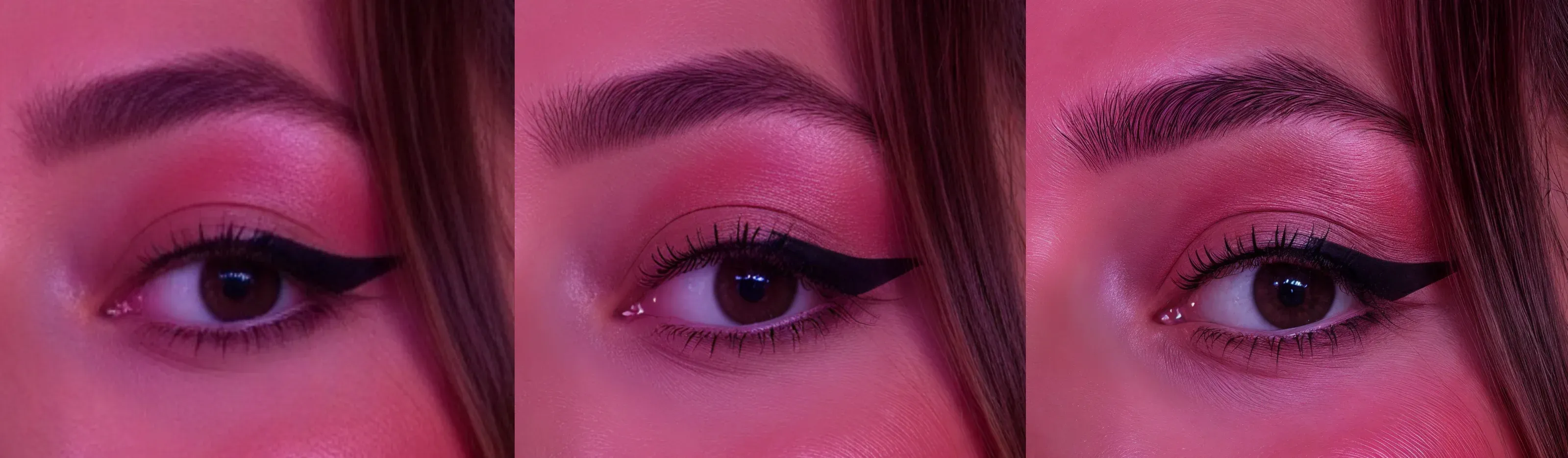
Most importantly each upscale is a way higher resolution, making it more suited for broadcast or large-sized print materials. The final pic here is 3072x4096, up from 768×1024!
Can I upscale videos too?
Yes and it works the same. Although you can only do a single 2x pass with [ Upscale ].
Why use Upscale?
Print your AI photos at large sizes without blur
Make your visuals stand out with extra clarity
Fix low-res images for better performance in ads
Use images across more formats and platforms
Try Upscale now
Your best AI photo and video just got sharper. Use [ Upscale ] in Photo AI to unlock maximum quality — in one click.