How to change background of your photos with AI?
change-background-ai
Written By @levelsio
Last updated About 1 year ago
Want your photo in a cozy café, a mountain landscape, or glowing in sunset light — without retaking it? With Photo AI’s Relight feature, you can instantly change the background, lighting, and overall mood of any photo. No Photoshop, no technical skills needed.
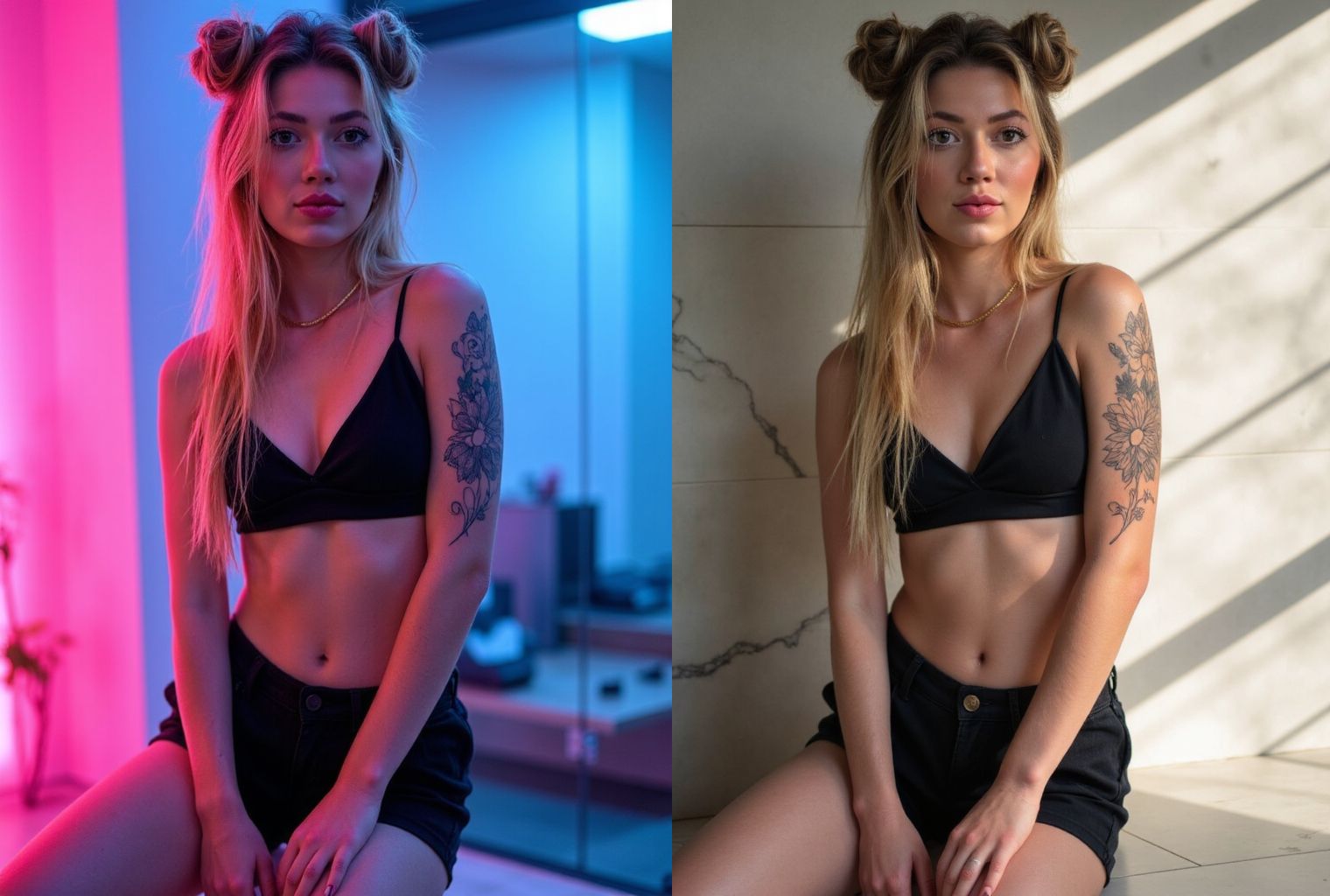
What is Relight?
Relight lets you modify your photo’s setting and light source using AI. It can:
Change a dull studio shot into a beach scene
Add warm golden-hour light
Replace plain backgrounds with stunning scenery
Match your image’s vibe to your brand or product
Your model stays exactly the same — only the environment and lighting changes.
How to use Relight in Photo AI
Turning your photo into a short video takes less than a minute. Here’s how:
Inside Photo AI, first take some photos of the scene you like. Either write your own prompt or use one of our 100s of photo packs.
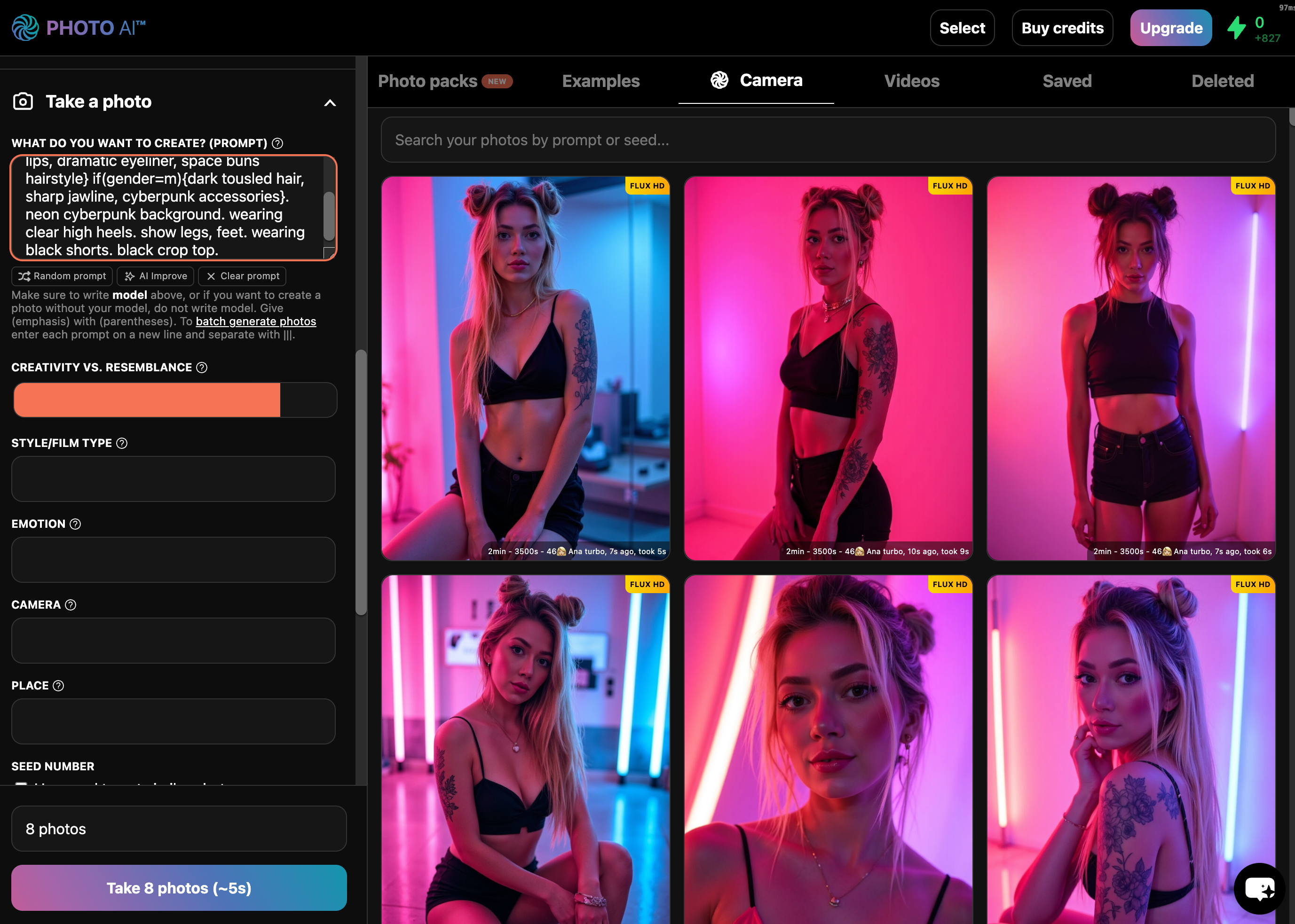
Once you see a photo you like but want to change the background or lighting, hover over it and tap [ Relight ].
You’ll see a popup that lets you write a prompt which controls the scene’s location, environment and light:
In this case I write: “change to a minimalist fully marble room that is lit by the sun”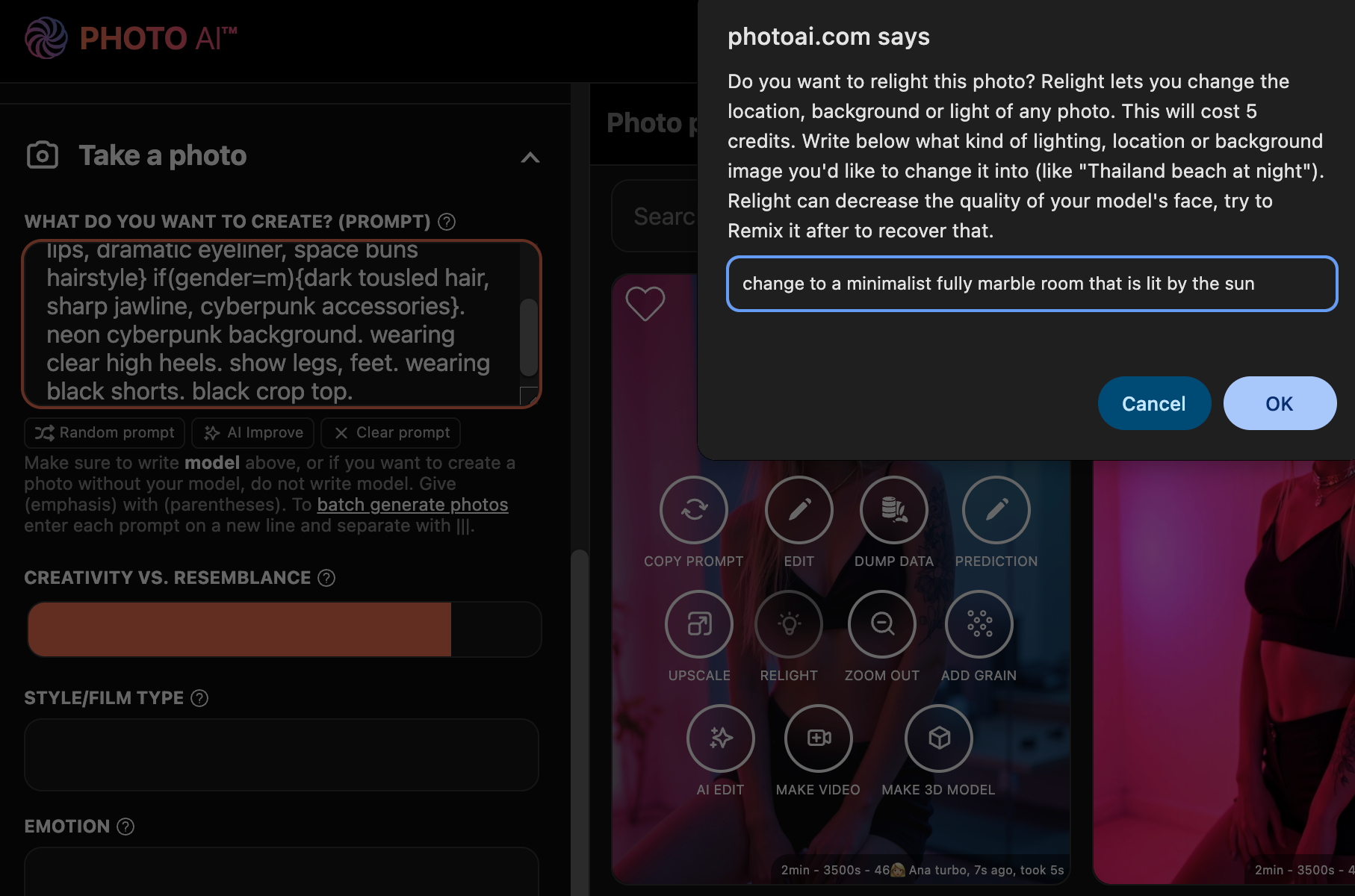
Done! You’ll now see your photo with a new location, setting, background and light:
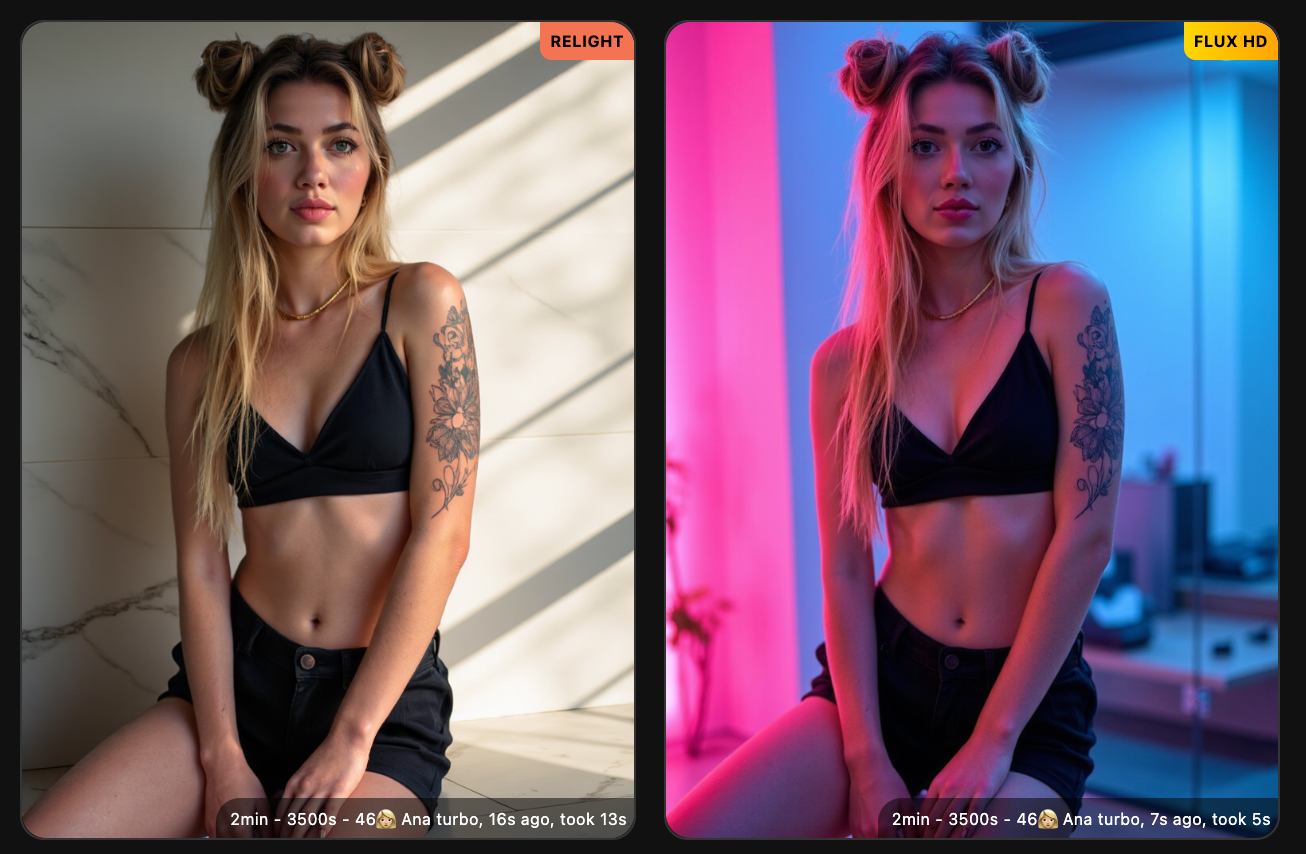
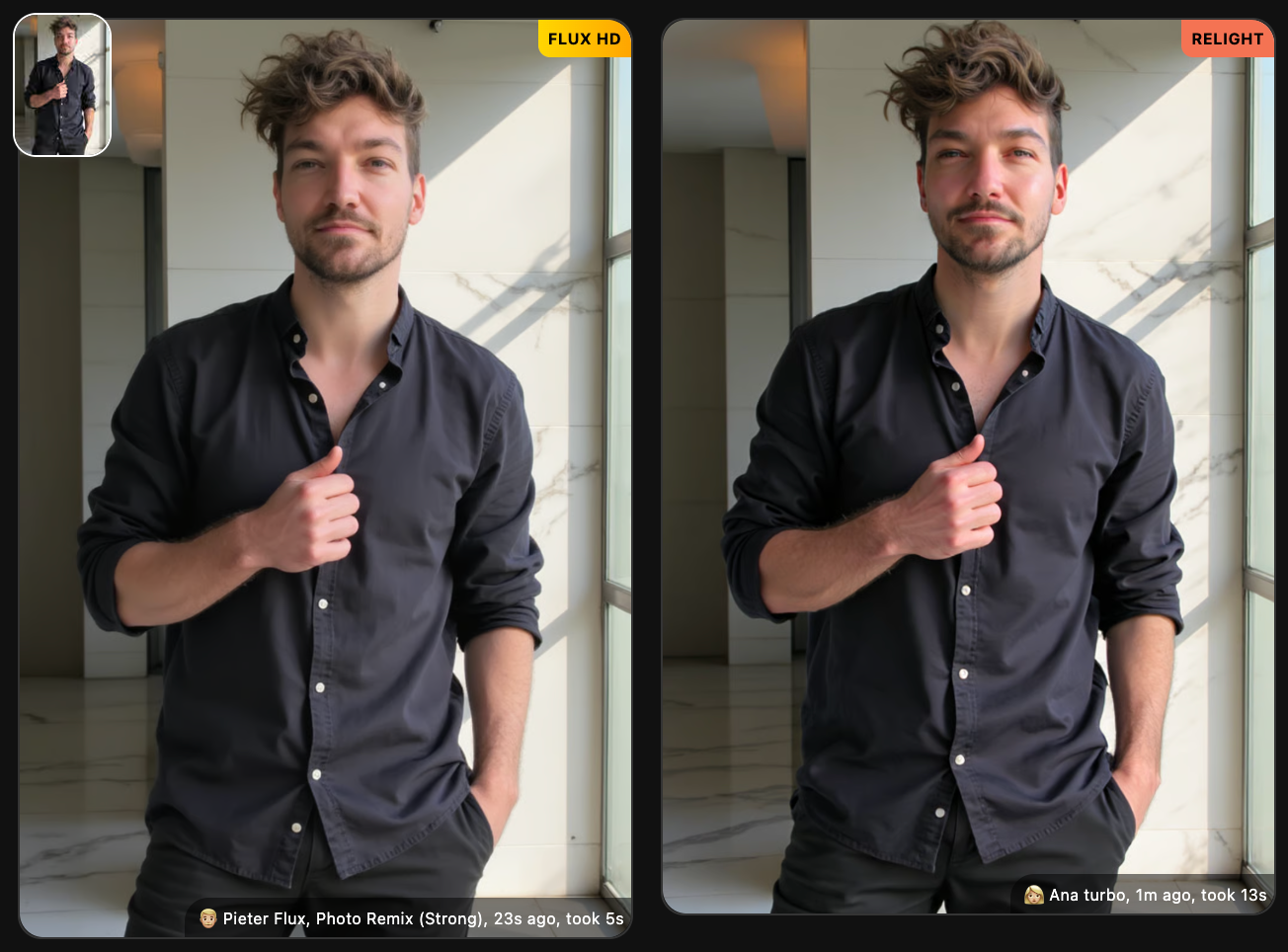
Relight has the limitation that it might reduce the resemblance/likeness of your photo. In that case, try using [ Remix ] to get resemblance back:
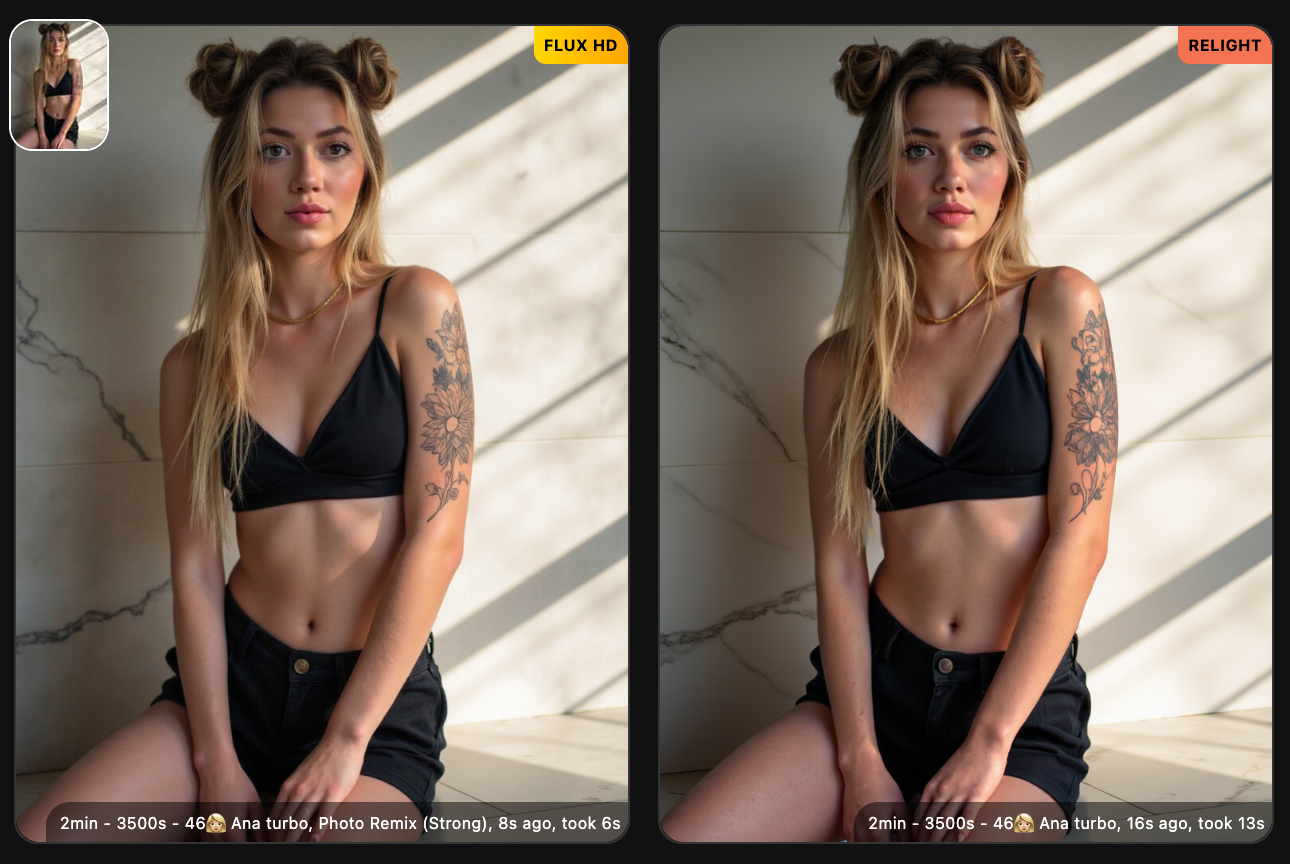
As you see the left remixed pic has resemblance back again.
Upload your own images to change the background of
With Photo AI you can also upload your own images (like real photos you made) and use [ Relight ] on them
First go to [ Import into gallery ] and select your image.
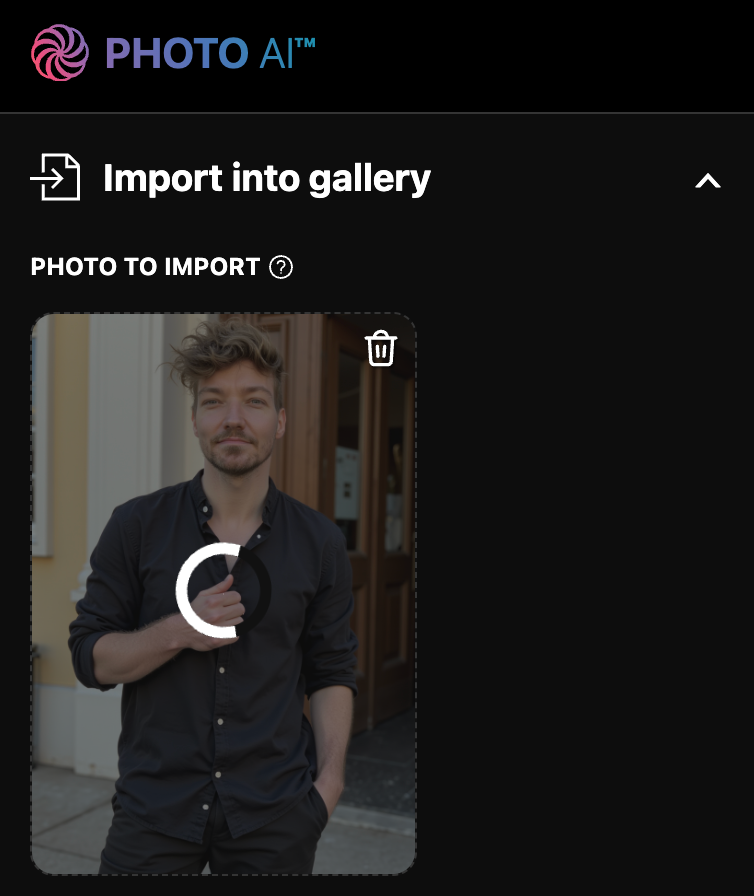
Then once it shows up in the gallery, hover over the image and tap [ Relight ].
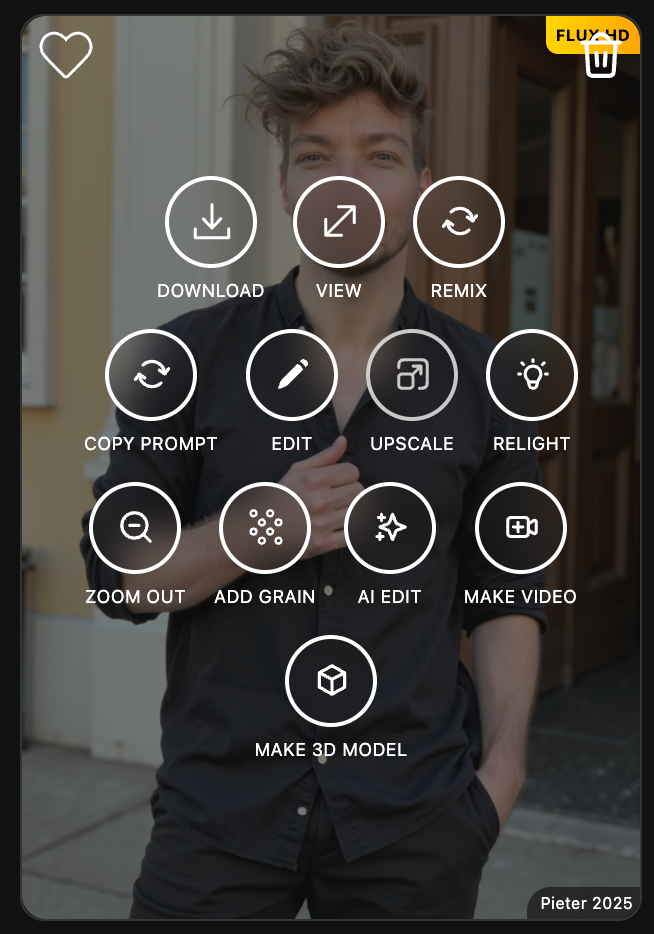
Just like before, write your prompt “change to a minimalist fully marble room that is lit by the sun”:
It will then take a minute or so and your photo is done. As you see the face was affected pretty badly in this [ Relight ] (which can happen), let’s fix that with one [ Remix ] pass.
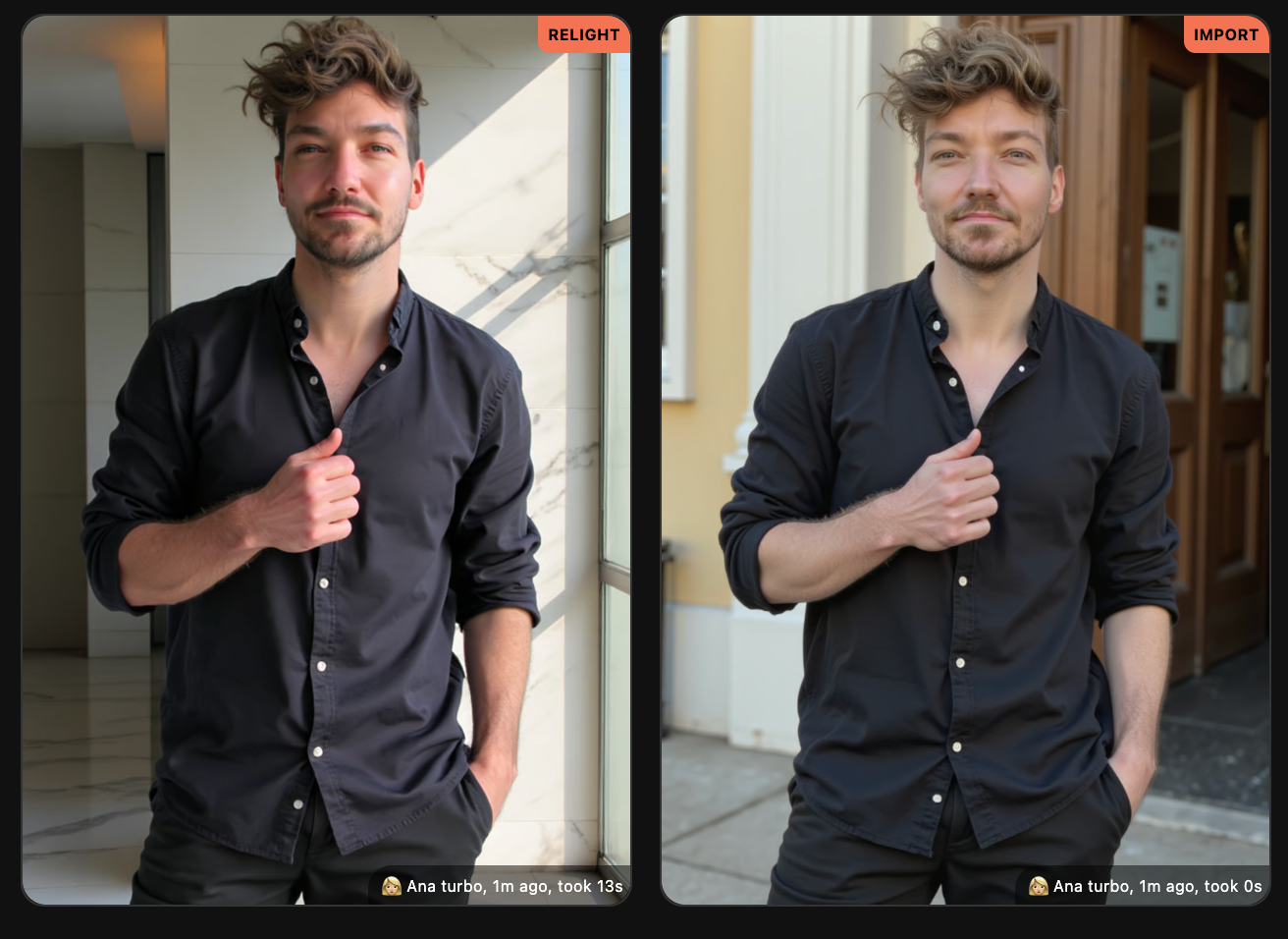
And here you go, it has its likeness back:
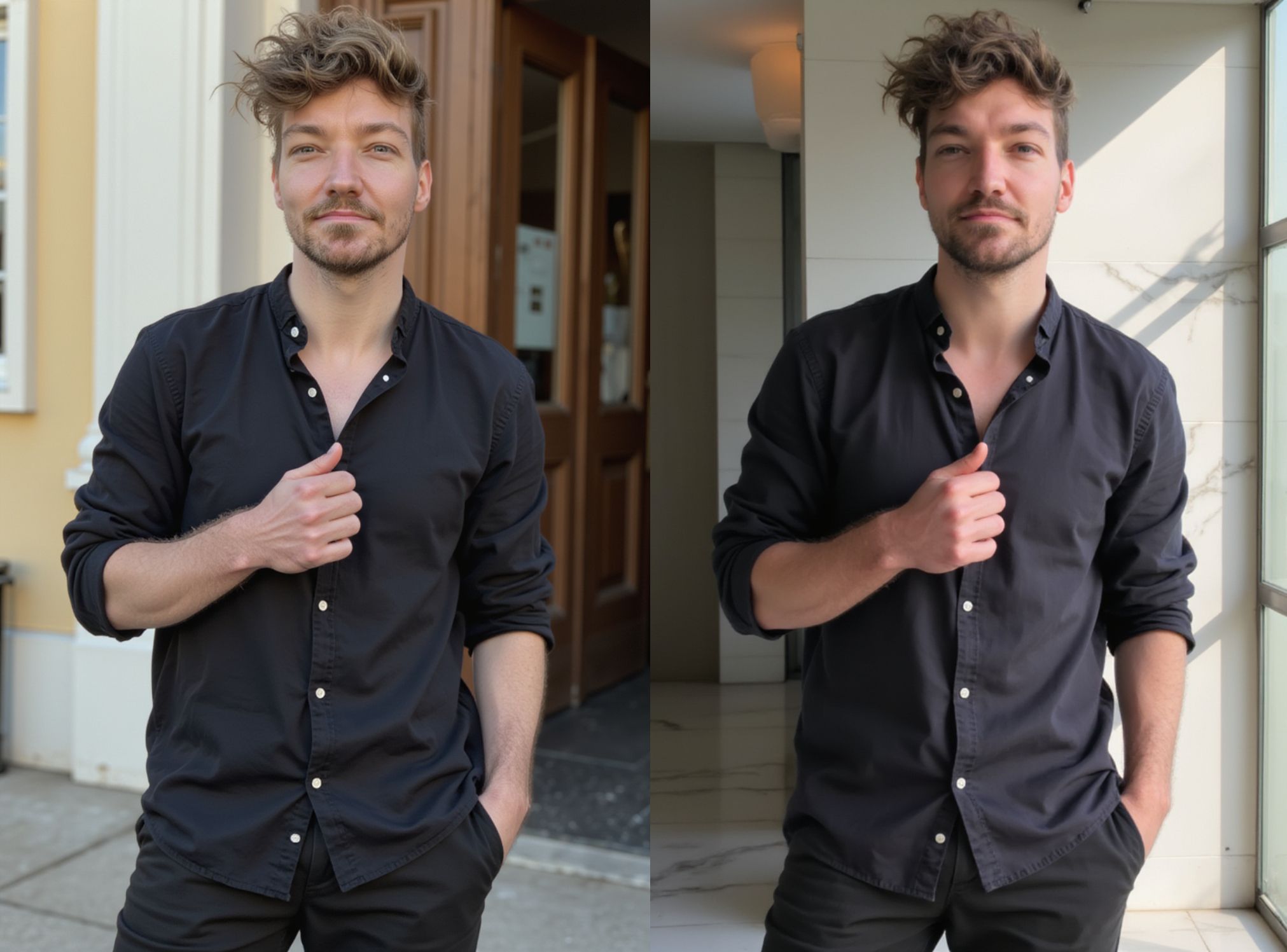
And the final comparison before and after:
Try [ Relight ] now on Photo AI!